The Directors
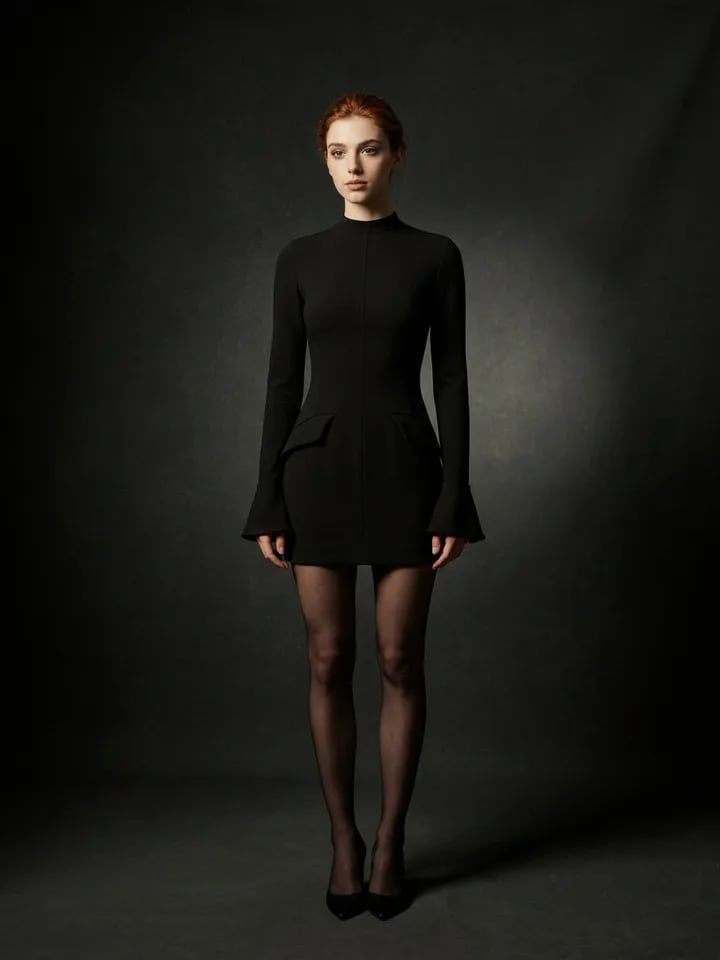
Noir Atelier
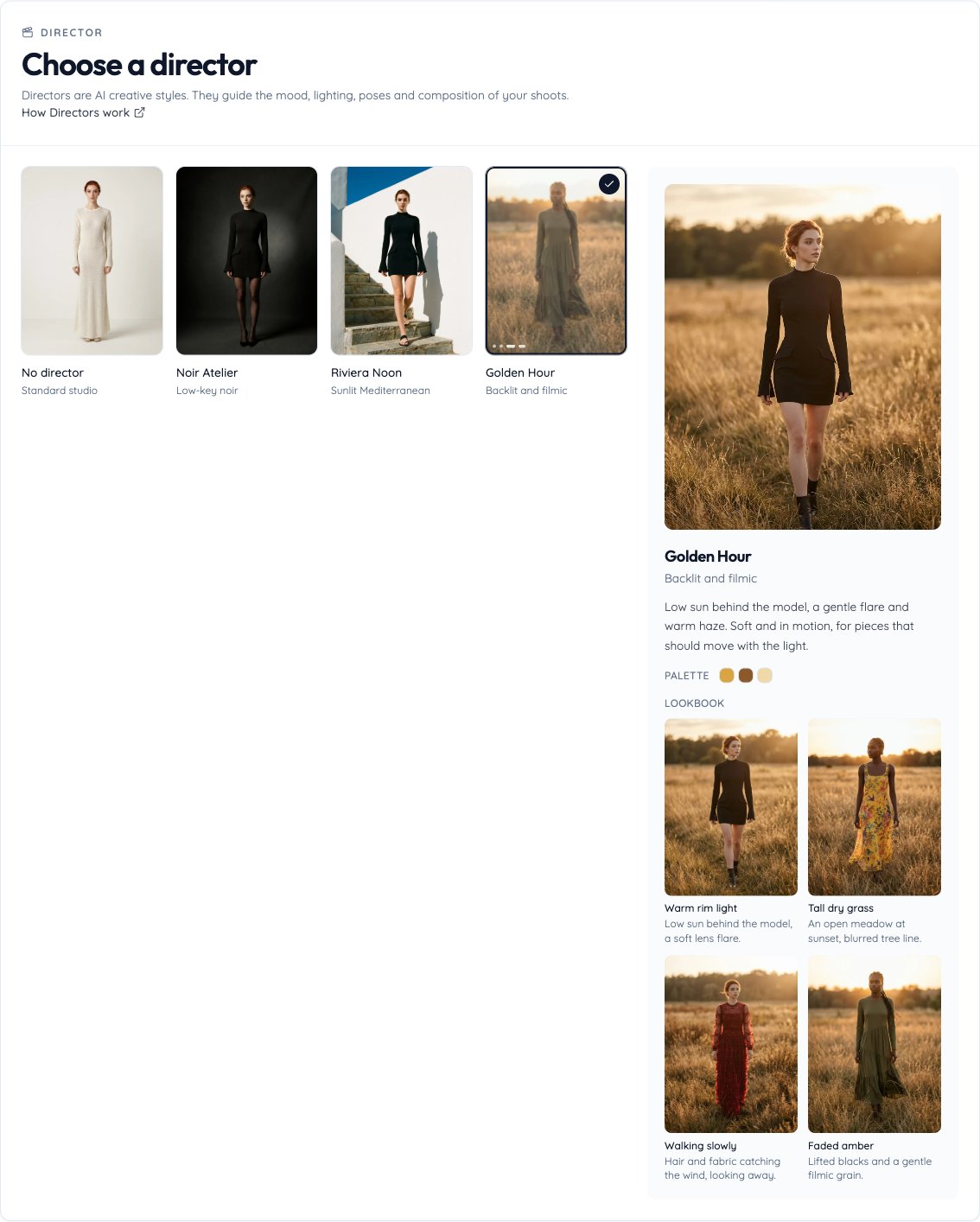
Low-key noir. Deep charcoal and a single warm spotlight. Shadows do the styling, so the garment reads as sculpted and considered.
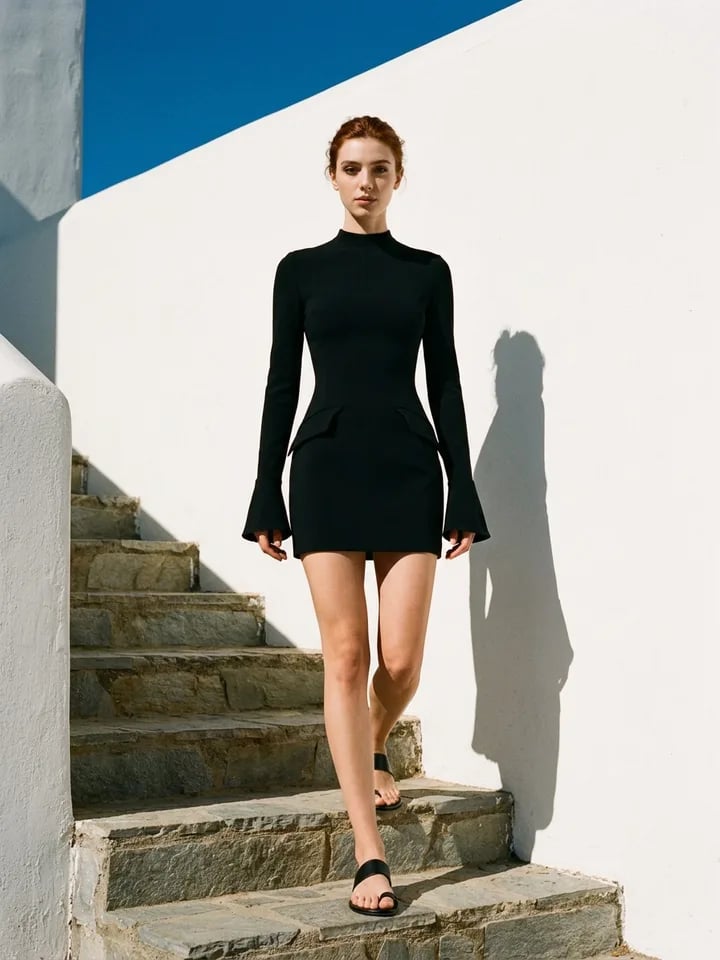
Riviera Noon
Sunlit Mediterranean. Crisp noon light on whitewashed walls and a deep blue sky. Bright, saturated, and relaxed, for summer collections.
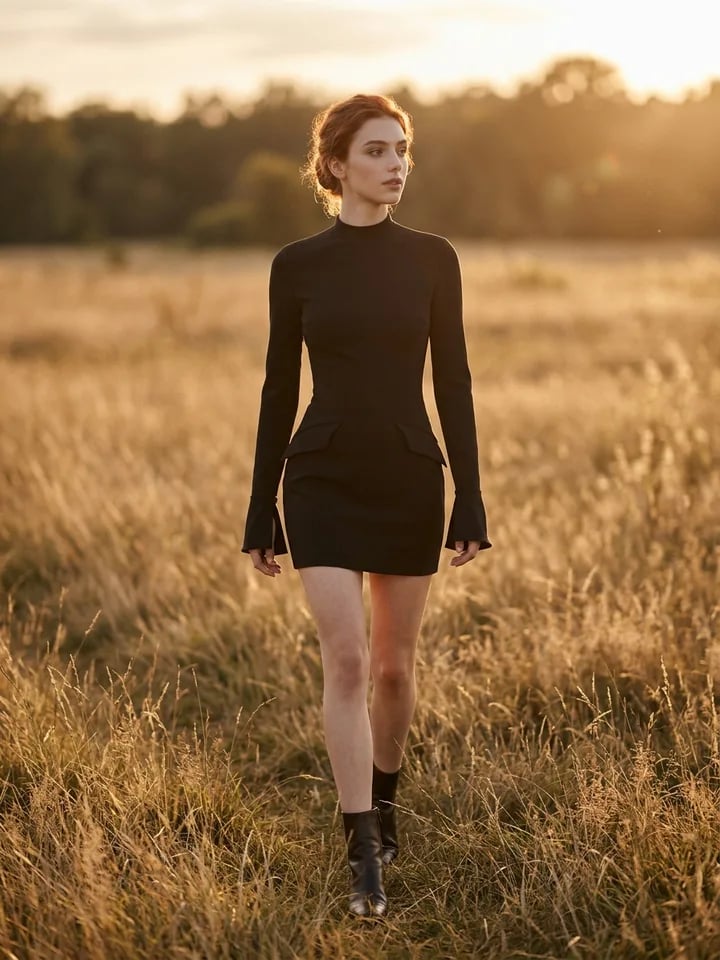
Golden Hour
Backlit and filmic. Low sun behind the model, a gentle flare, and warm haze. Soft and in motion, for pieces that should move with the light.
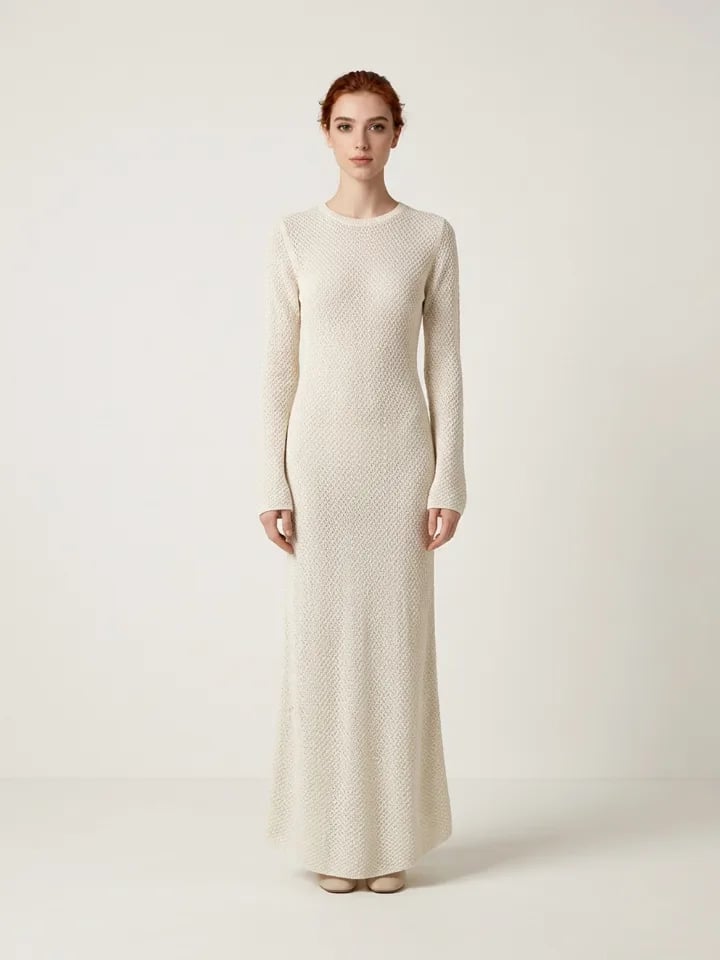
No director
Standard studio. Your shoot keeps the standard studio look, and you choose the background yourself.
Use a Director
1
Start a shoot
Open Flat-Lay Photos, Mannequin Photos, or Full Look, then add your garment or build your outfit.
2
Open the Director step
The Director step comes before poses. Each Director shows its Palette and a Lookbook of four sample shots that show its light, set, pose, and colour grade.
3
Pick a Director
Select a Director, or keep No director for the standard studio look.
4
Finish and generate
Choose your poses and options, then generate. Every image in the shoot follows the Director’s style.
Good to know
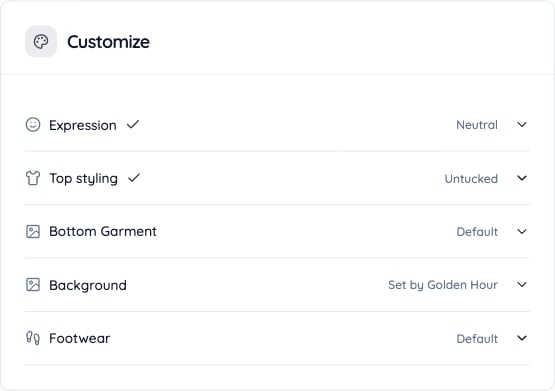
- The Director sets the background. In Flat-Lay and Mannequin Photos, the Background option shows Set by and the Director’s name, and it’s locked. To choose your own background, go back to the Director step and pick No director.
- No extra credits. A Director doesn’t change what a shoot costs.
- Studio remembers your last choice. A new shoot starts with the Director you last generated with on this browser.
- Keep a collection consistent. Use the same Director for every product in a collection so the photos match.