

Catalogs is part of the Runway plan. See Credits & plans.
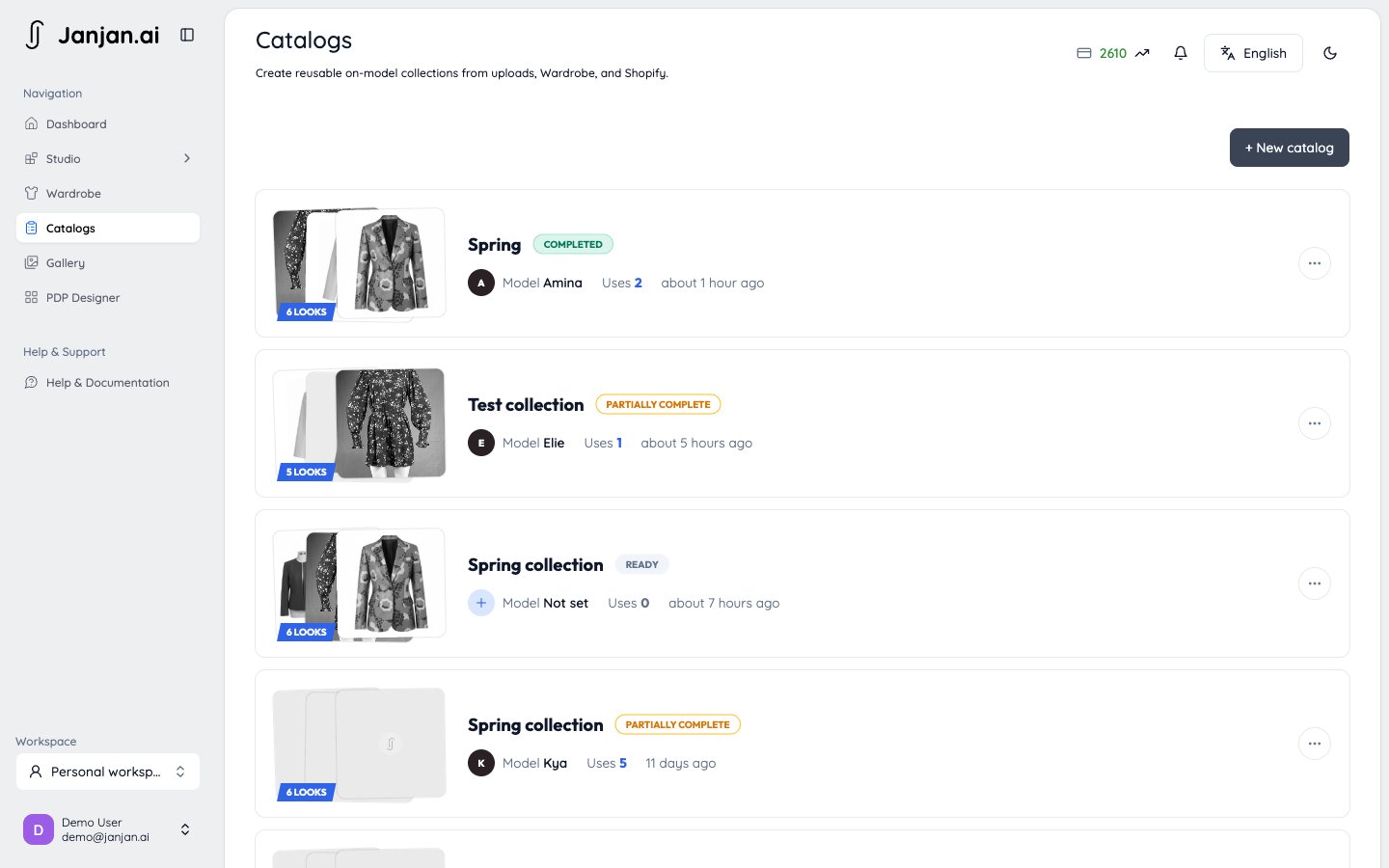
Create a catalog
1
Name it
Open Catalogs in the sidebar, click New catalog, and give it a name, for example “Spring collection”.
2
3
Confirm the categories
Janjan sorts each garment into Upper body, Lower body, One-piece, or Outerwear. Garments marked Check category need you to confirm or correct them. When every category is right, click Mark ready to generate.
Import a Shopify collection
Instead of picking products one by one, you can import a whole Shopify collection. Each product becomes a garment, one per colourway. Choose All colourways or First colourway only. Colourways without a photo of their own are skipped.If the import option asks you to update the Shopify app, update the Janjan app on that store first.
Start a run
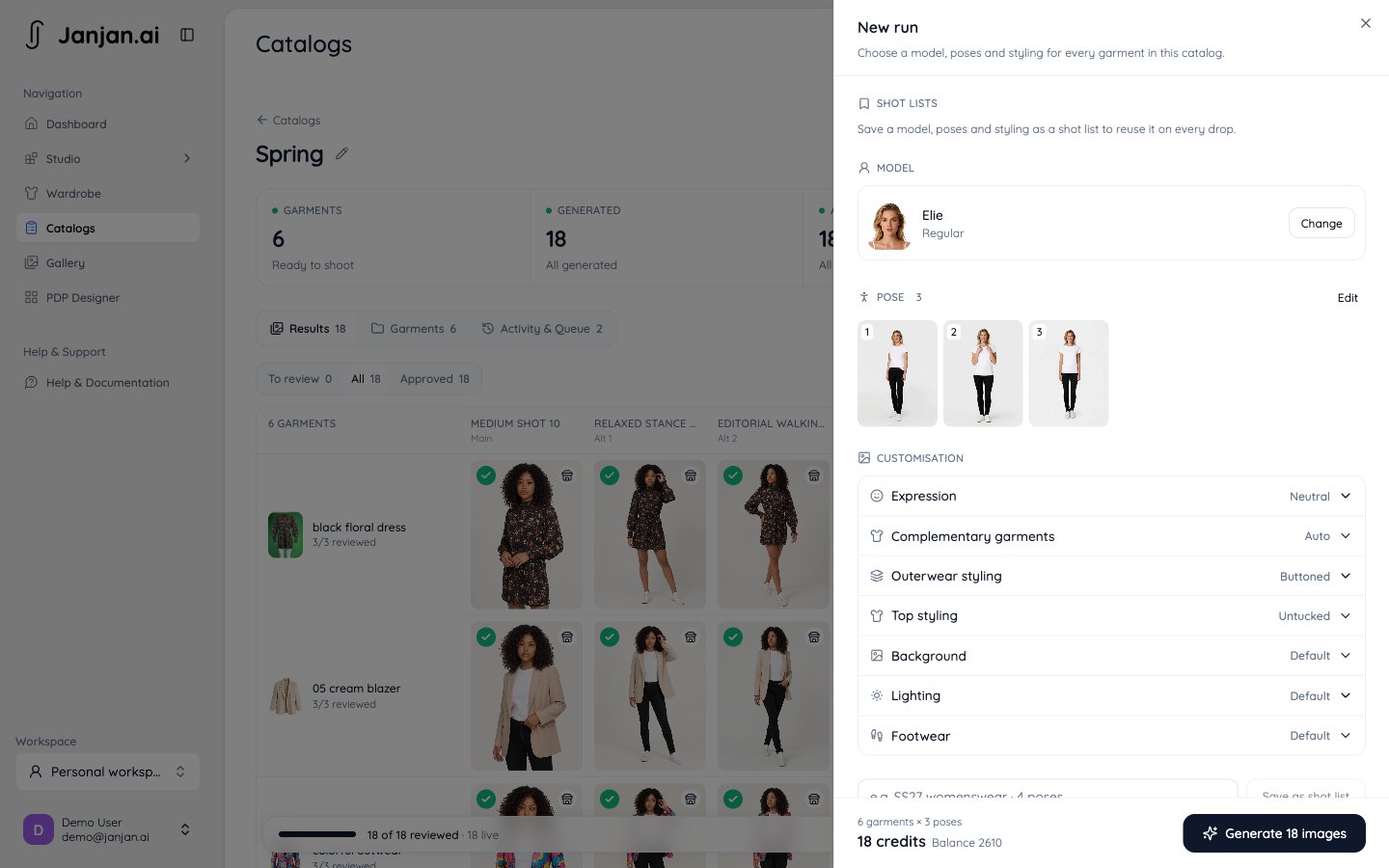
Click New run to open the run settings. They apply to every garment in the catalog.1
Choose a model
Pick a model from the library and a body type.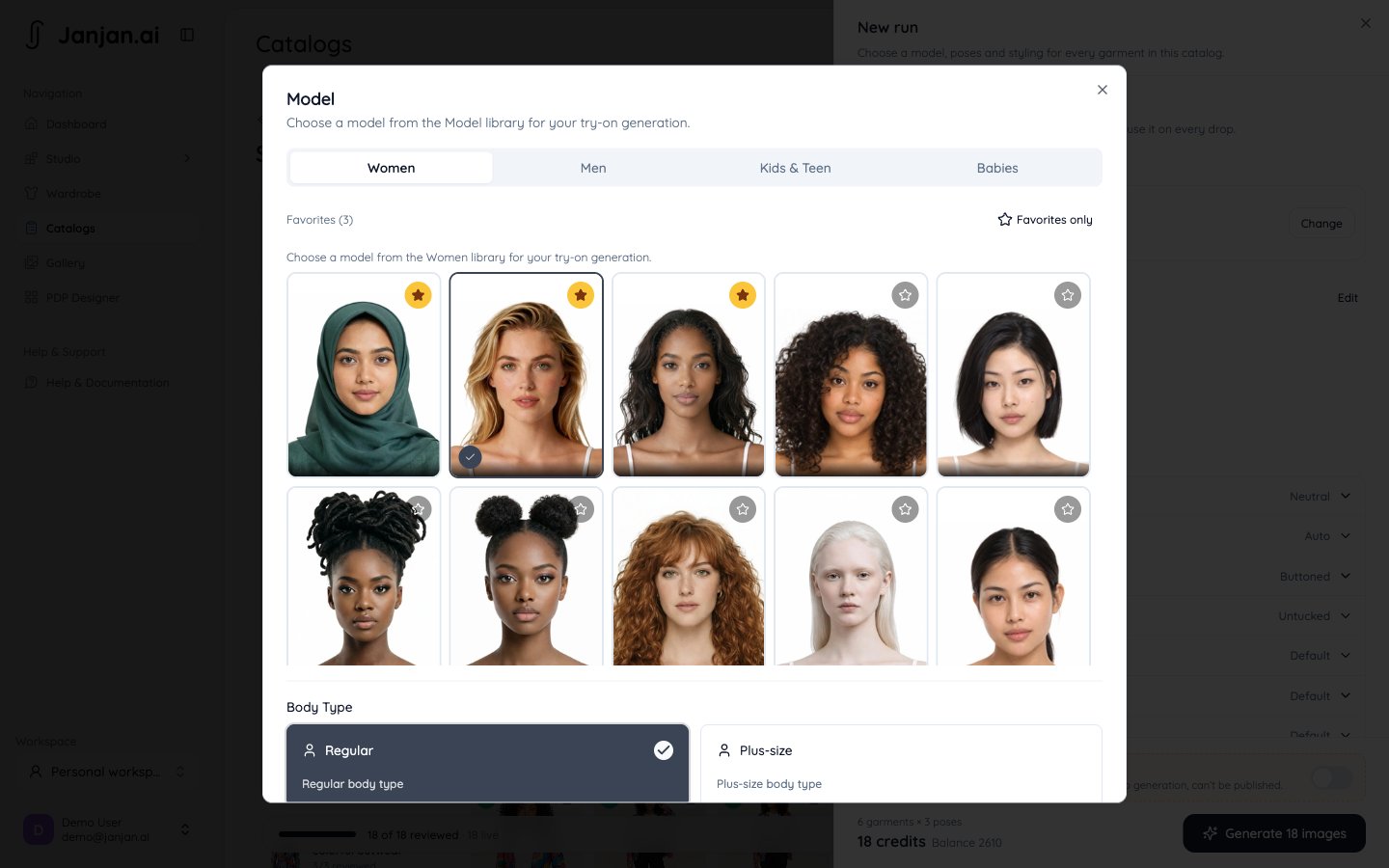
2
Choose poses
Pick one or more poses. Poses that don’t work with every garment in the catalog are hidden. The order you pick them in sets the image order: the first pose is the main image, the rest are alternates.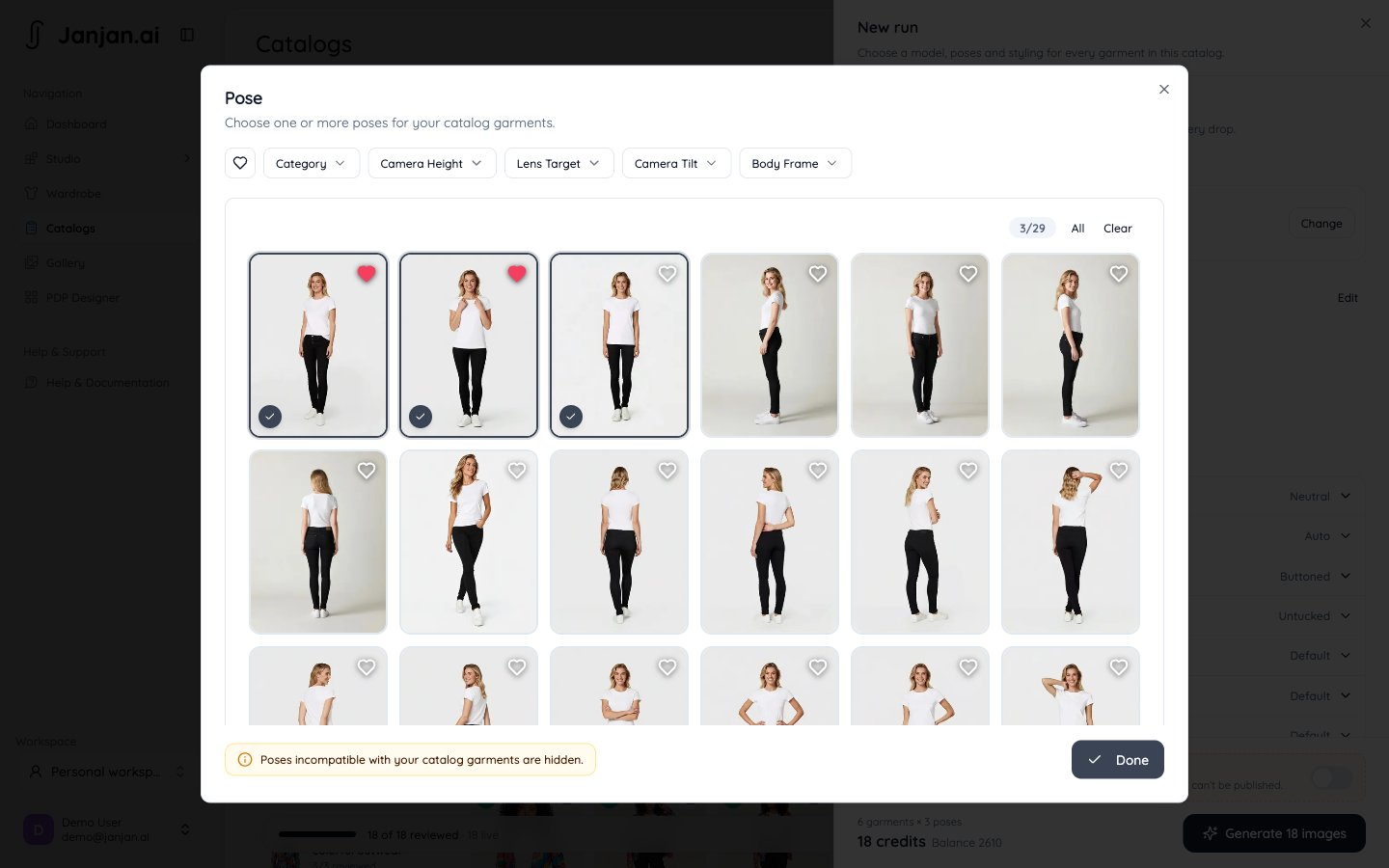
3
Style the shoot
Set the expression, background, lighting, and footwear. Under Complementary garments, choose what the model wears with your tops or bottoms: a garment from this catalog, an example, or Auto for the model’s default outfit. You can also set how outerwear and tops are worn.
4
Generate
The run makes one image for each garment in each pose. The cost and your balance are shown before you start. Click Generate to begin.
Review the results
Images appear on the Results tab as they finish, so you can start reviewing straight away. The contact sheet has one row per garment and one column per pose. The counters at the top track how many garments, generated, approved, and live images the catalog has.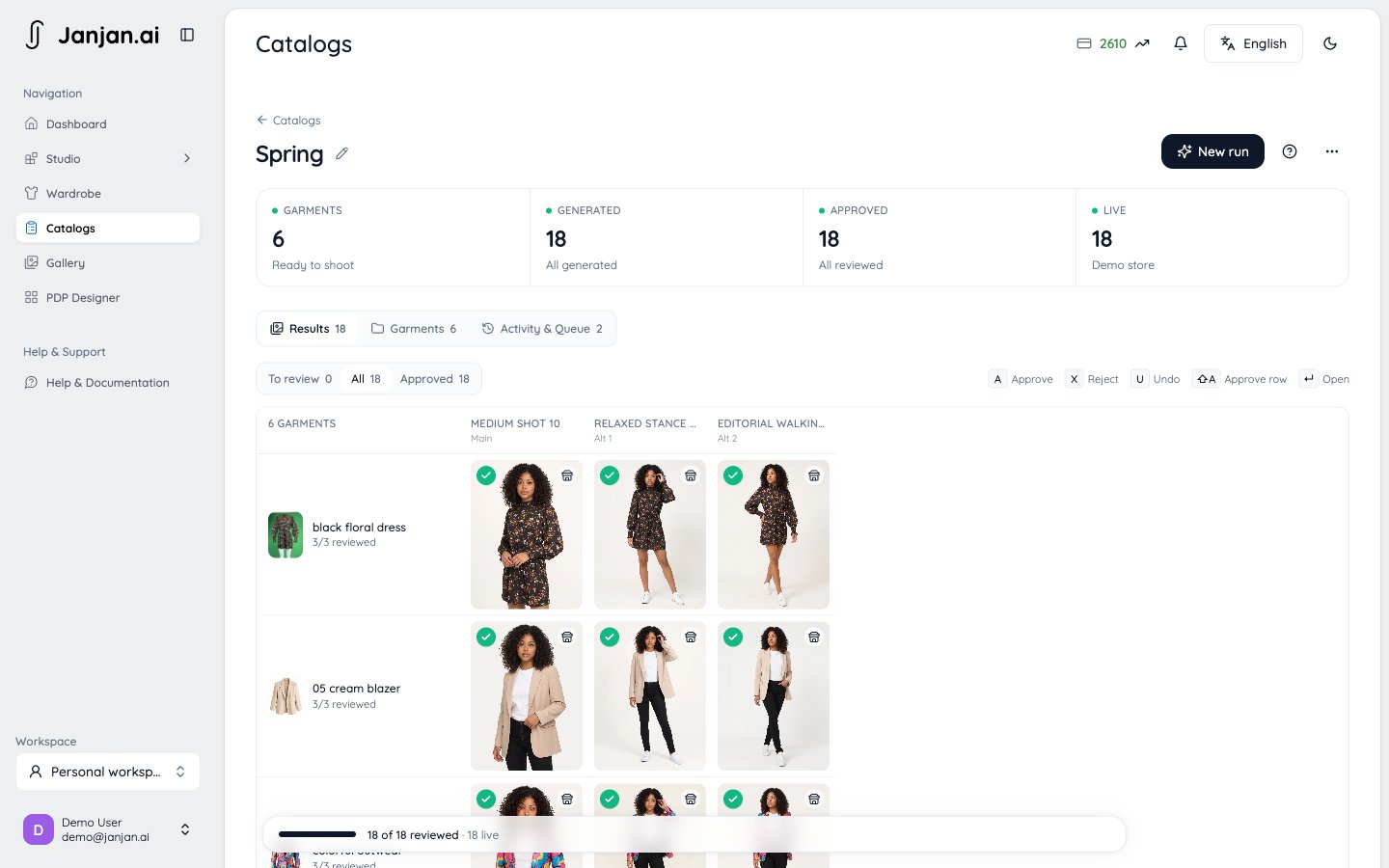
- Approve or Reject each image, or Approve row for a whole garment.
- Approve remaining approves everything you haven’t reviewed.
- Redo generates rejected or failed images again. It uses credits, and Janjan asks you to confirm first.
- Filter by To review, Approved, Rejected, or Failed.
Publish to Shopify
When you’ve approved images, click Publish to send them to your store.- Products from your store get the images in shot-list order: the main image first, then the alternates. Existing store photos stay, after them.
- Garments that aren’t from your store become new draft products, one per garment.
- Set as colour variant image: each colour shows its own on-model main image.
- Replace earlier on-model images: removes images you published from Catalogs before. Store photos are never deleted.
Good to know
- You can rename a catalog, move it back to draft, or delete it from its menu.
- The number of catalogs and the number of garments in each depend on your plan.